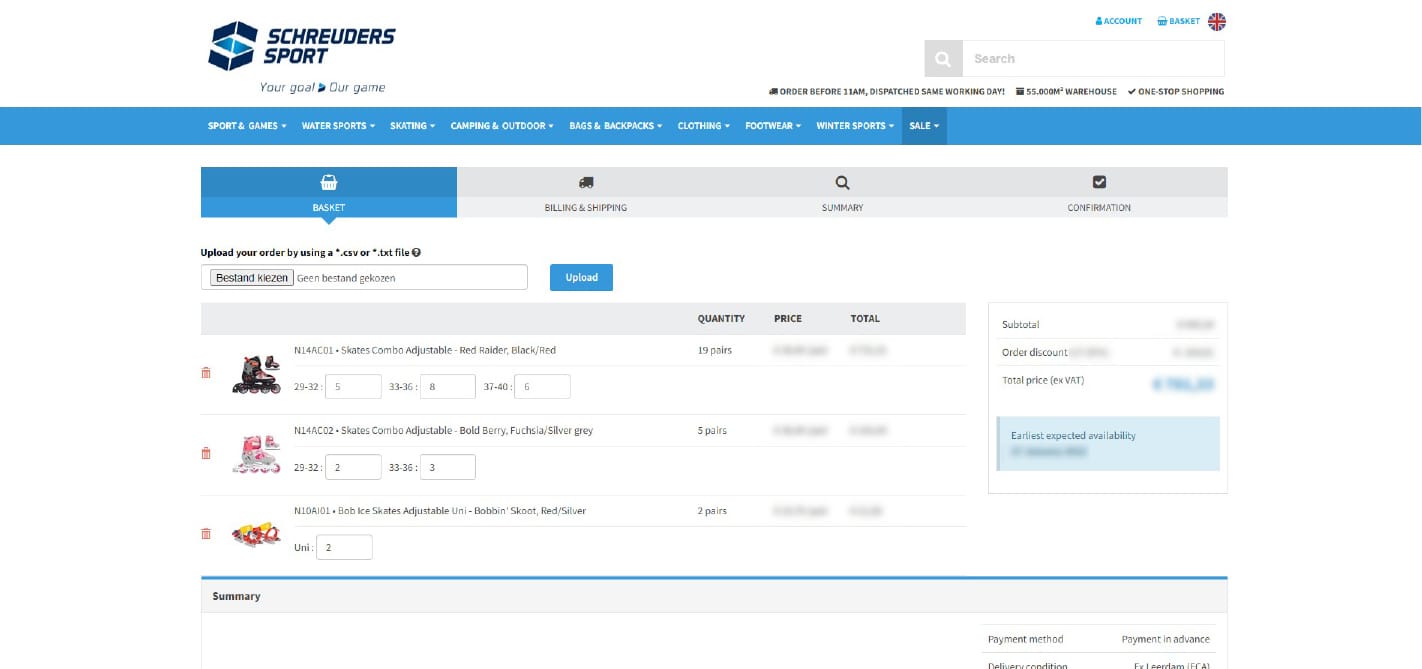


CSV Upload
Fill your shopping cart automatically with the new CSV Upload tool!
We would like to introduce a new possibility to place your orders in the shopping cart even more easily. You do not need any technical knowledge for this, because you can easily do this yourself via a CSV upload.You can generate barcodes of the products with the desired numbers from your own business software and upload it by means of a CSV file. The ordered products will then immediately appear in your shopping cart. This prevents a lot of manual work and is therefore easier, faster and less prone to errors ... because you can immediately see the availability of the products.
Introduction:
You can create a CSV or TXT file from your own software package containing the EAN/barcode and quantities. You can then upload this file and complete your order as you are used to with a normal web order.The file should simply look like this:
EAN number,amount
EAN number,amount
EAN number,amount
EAN number,amount
If there are irregularities after uploading the file (eg unknown EAN or a higher number entered than in stock), you will receive feedback. After uploading, you should always check the shopping cart carefully for data such as prices, numbers, total value and delivery times.
STEP 1
Depending on your software package, you can create an order proposal directly from your software package. This proposal only needs to contain the EAN and desired quantity. You then export this order proposal from your own software package to a CSV or TXT file.STEP 1
This step is optional if you cannot export the correct format from your software package.- Paste these EANs in the first column of an Excel file
- Place the desired numbers per EAN in the second column of the Excel file
- Make sure all cell properties are set to "number" (instead of "text" or "default")
- Save this file as a CSV UTF-8 (*.csv) file
- Open the file with notepad to check. It should look like this:
8716404327842,4
8716404327859,5
8716404328931,2
STEP 2
Go to the shopping cart.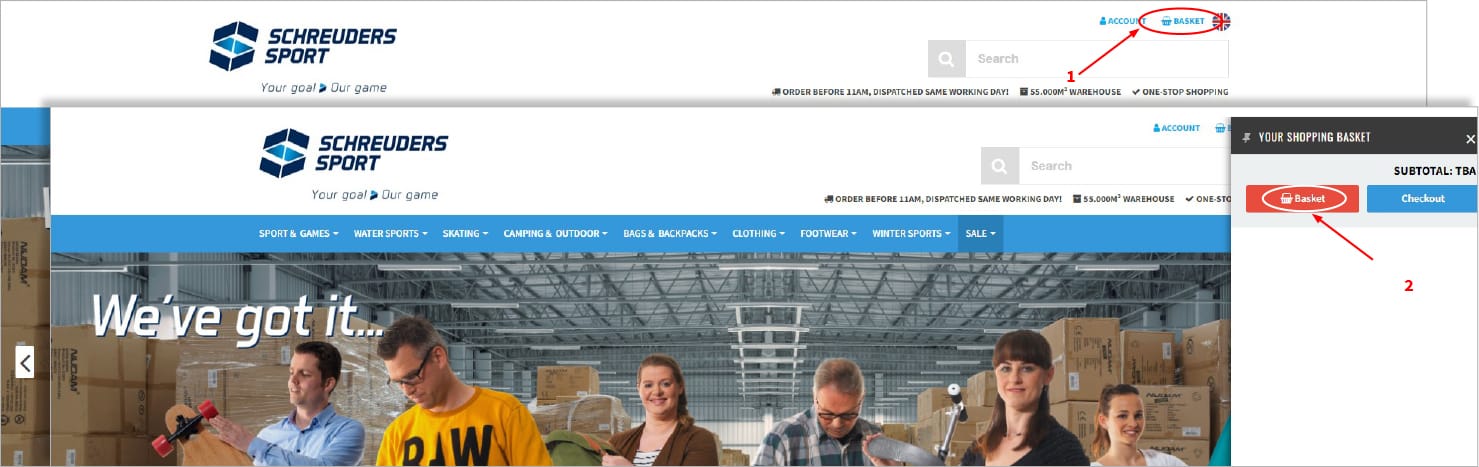
STAP 3
Upload your CSV file here.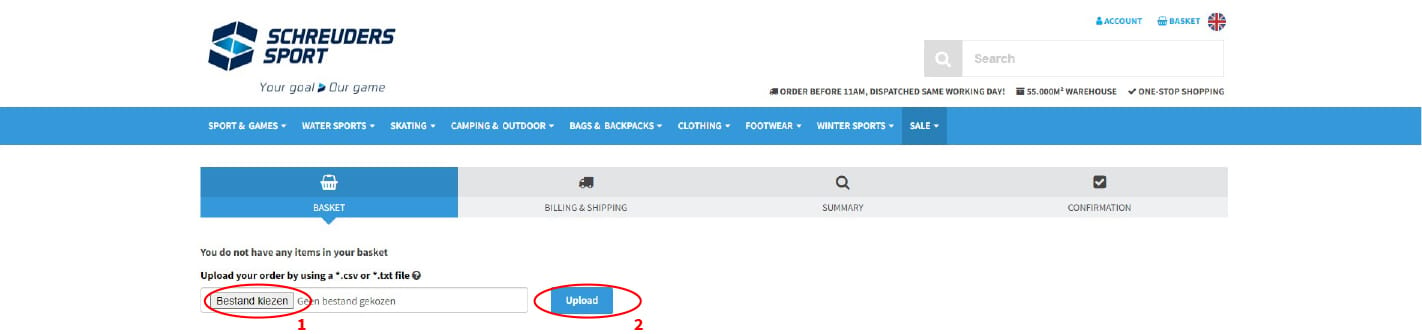
STEP 4
Your shopping cart is filled.